
Within System Requirements: Can Your PC Run the Game?
Check Within system requirements for Windows, compare full game and demo specs, and learn what to check before downloading an atmospheric puzzle thriller.
Jump to
Within System Requirements at a Glance
Within’s dark corridors should keep you thinking about the next puzzle, not whether your computer can handle the game. The Within system requirements matter because the full game needs more memory and storage than the demo. Start your Within system requirements check with 64-bit Windows, installed RAM, and available drive space, then examine the processor and graphics details carefully.
Within is a single-player, first-person thriller built around exploration, puzzles, and a dangerous investigation. Its slower pace does not mean you should skip the hardware check: the minimum memory requirement is 16 GB RAM, while the recommended amount is 32 GB RAM.
Here are the full game’s requirements:
| Component | Minimum | Recommended |
|---|---|---|
| Operating system | Windows 10 or Windows 11, 64-bit | Windows 10 or Windows 11, 64-bit |
| Processor | Intel Core i3 | Intel Core i5 |
| Memory | 16 GB RAM | 32 GB RAM |
| Graphics | NVIDIA GeForce GTX 1090 | NVIDIA GeForce GTX 3060 |
| DirectX | Version 11 | — |
| Available storage | 10 GB | 10 GB |
Keep the full game’s graphics requirements separate from the demo’s when comparing your hardware. The dash in the recommended DirectX cell is not an instruction to remove or change DirectX; the minimum requirement remains Version 11.
For the quickest initial check, focus on the clear numbers. A computer with 8 GB RAM falls below the full game’s minimum memory requirement. A machine with 16 GB reaches that memory threshold, while 32 GB matches the recommended amount. Both hardware tiers require 10 GB of available storage.
Read the Processor and Graphics Details Carefully
The Within system requirements cover the processor, graphics card, memory, operating system, and storage. Check each component against the version you plan to play, and keep the minimum and recommended tiers separate.
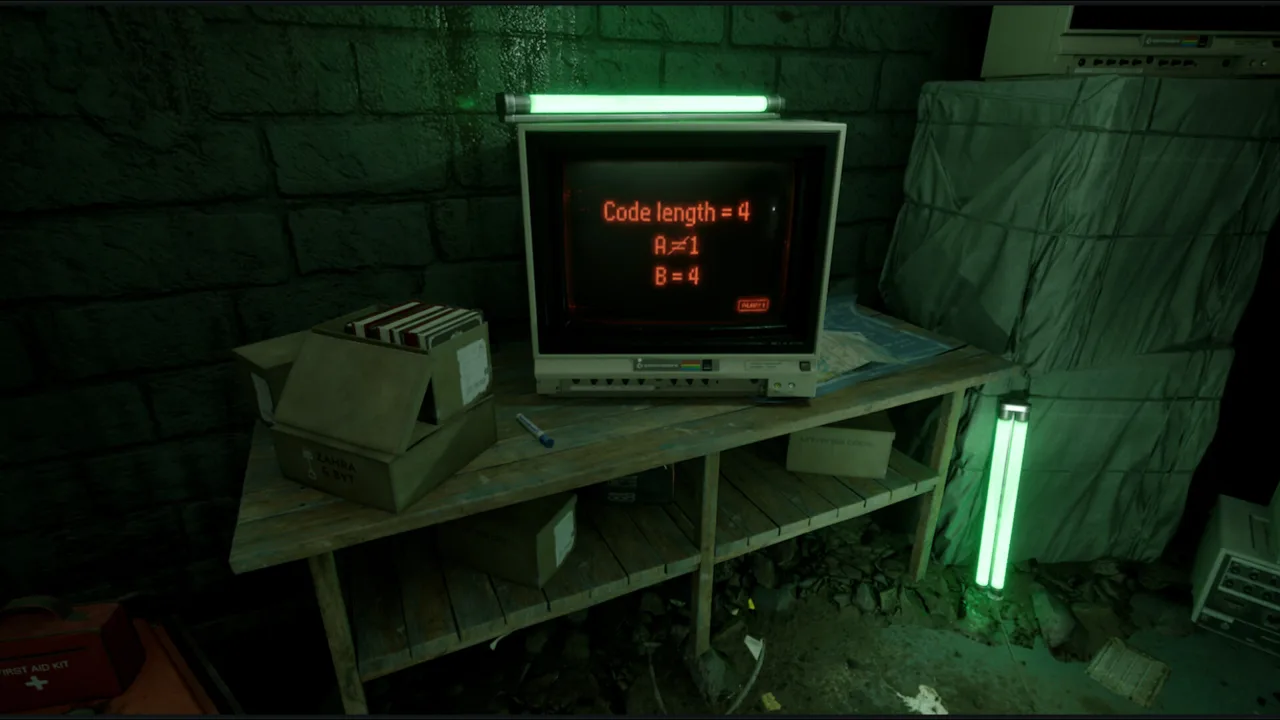 Image: Steam / AleksandrGlock
Compare the minimum and recommended processors
The full game requires an Intel Core i3 at minimum and recommends an Intel Core i5. The demo uses the same processor requirements, even though its minimum memory and storage amounts are lower.
Check your complete CPU model before comparing hardware. Keep that model handy if you contact support about crashes or performance. Include the processor name alongside your operating system, graphics card, and RAM when describing a technical problem.
Also, keep CPU and RAM checks separate. The full game pairs its Intel Core i3 minimum with 16 GB RAM and its Intel Core i5 recommendation with 32 GB RAM. Check both components rather than stopping your comparison after the processor.
Compare graphics requirements by version
The full game’s minimum graphics requirement is NVIDIA GeForce GTX 1090, and its recommended graphics requirement is NVIDIA GeForce GTX 3060. Keep these names attached to their respective hardware tiers when organizing your comparison.
The demo’s minimum graphics entry is different: it names a GeForce GTX 1080. Keep that detail attached to the demo rather than using it as the full game’s minimum.
| Requirement detail | How to use it |
|---|---|
| Intel Core i3 minimum | Check this processor requirement for either version |
| Intel Core i5 recommended | Keep this in the recommended tier for either version |
| 16 GB minimum RAM | Compare your installed RAM with the full game’s minimum |
| 32 GB recommended RAM | Use this as the recommended memory target for both versions |
| GTX 1090 and GTX 3060 | Keep these full game graphics requirements separate from the demo’s GTX 1080 minimum |
Compare the complete requirements before deciding what to download. For a technical support request, record your actual CPU and graphics card names rather than copying the requirements table into your report. Include your own RAM amount and Windows version as well.
Full Game vs. Demo: Different Hardware Targets
The Within system requirements change between the demo and the full game. That difference matters if you tried the free version earlier and are now preparing to install the complete adventure.
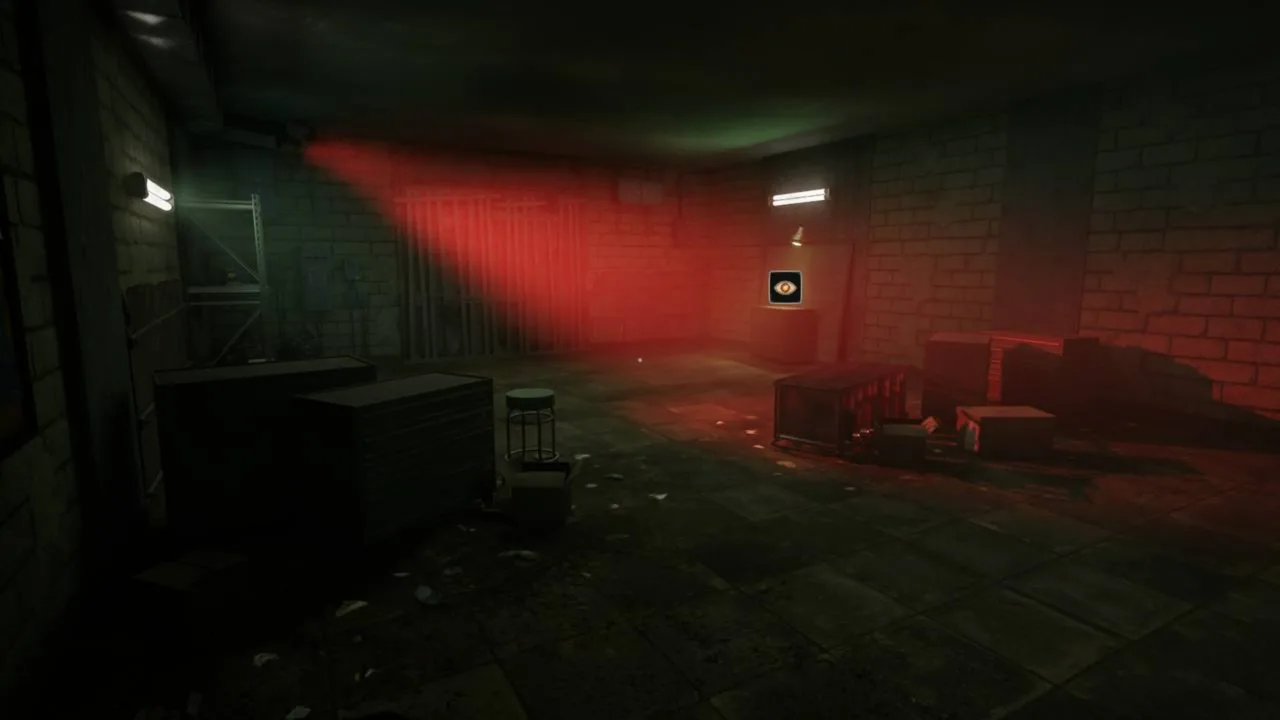 Image: Steam / AleksandrGlock
The demo requires 12 GB RAM and 5 GB of available storage at minimum. The full game raises those figures to 16 GB RAM and 10 GB of available storage. Recommended memory stays at 32 GB for both versions.
| Component | Demo | Full game |
|---|---|---|
| Minimum operating system | Windows 10 or 11, 64-bit | Windows 10 or 11, 64-bit |
| Minimum processor | Intel Core i3 | Intel Core i3 |
| Minimum RAM | 12 GB | 16 GB |
| Minimum graphics | NVIDIA GeForce GTX 1080 | NVIDIA GeForce GTX 1090 |
| Minimum DirectX | Version 11 | Version 11 |
| Recommended processor | Intel Core i5 | Intel Core i5 |
| Recommended RAM | 32 GB | 32 GB |
| Recommended graphics | NVIDIA GeForce GTX 3060 | NVIDIA GeForce GTX 3060 |
| Available storage | 5 GB | 10 GB |
The full game’s storage requirement is double the demo’s, and its minimum memory requirement increases by 4 GB. Those are practical differences to check before downloading.
A PC with 12 GB RAM reaches the demo’s minimum memory amount but falls below the full game’s. Similarly, having 5 GB free covers the demo’s stated storage requirement, while the complete game needs 10 GB available.
Use the free Within demo on Steam to explore its atmosphere and puzzle style. Keep its age in mind when evaluating technical behavior: the demo is an older build, and it is not a substitute for checking the full game’s requirements.
Within is now available, so players moving beyond the demo can get the full game on Steam. Check the correct version before comparing your computer’s specifications.
Check Your Windows PC Before Downloading
Work through the Within system requirements component by component. Check the operating-system architecture and available installation space alongside the processor, graphics card, and RAM.
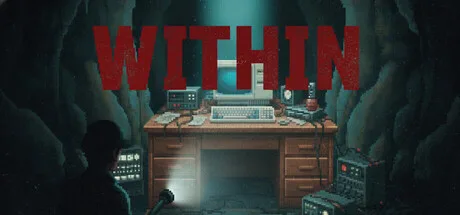 Image: Steam / AleksandrGlock
Start with Windows. Both versions support 64-bit Windows 10 and Windows 11. Native macOS and Linux versions are outside the supported platform lineup.
Next, check installed RAM. Compare it with the full game’s 16 GB minimum or the demo’s 12 GB minimum, depending on which version you intend to play. Both versions recommend 32 GB RAM.
Then check the drive where you intend to install the game. Compare available space on the destination drive with the requirement for the version you want: 10 GB for the full game or 5 GB for the demo.
Use this checklist to organize the comparison:
- Confirm that your operating system is 64-bit Windows 10 or Windows 11.
- Record your complete CPU model.
- Check installed RAM against the correct version’s minimum.
- Record your graphics card’s complete name.
- Check available space on the intended installation drive.
- Keep the DirectX 11 minimum requirement in your compatibility check.
Match the version to your memory and storage
The clearest Within system requirements comparison is the one involving RAM and drive space. These examples show how the two versions differ without assuming anything about frame rates:
| Your PC’s memory or storage | Requirement comparison |
|---|---|
| 12 GB RAM | Meets the demo’s memory minimum; below the full game’s |
| 16 GB RAM | Meets both versions’ memory minimums |
| 32 GB RAM | Matches both versions’ recommended memory amount |
| 5 GB available space | Covers the demo’s stated storage requirement |
| 10 GB available space | Covers either version’s stated storage requirement |
Check every component before finishing the comparison. Alongside RAM, the full game requires 64-bit Windows 10 or 11, an Intel Core i3, NVIDIA GeForce GTX 1090 graphics, DirectX 11, and 10 GB of available space.
For laptops, record the actual components instead of relying on a product name or a “gaming laptop” label. The complete hardware information is also useful if you later need help diagnosing a technical problem.
Separate Performance Problems From Gameplay Freezes
Meeting the Within system requirements is only part of the technical picture. A slow scene and a scene that stops progressing are different problems, and they deserve different descriptions when you ask for help.
In the older demo, the opening cutscene can stop after the character presses a button. Keep that specific demo issue separate from your full game hardware comparison.
Describe where the animation stops, what happened immediately beforehand, and which version you are playing. Include your hardware details in the same report instead of using the frozen scene alone to decide which component to replace.
Avoid assuming that every technical issue is a graphics-performance problem. If the same animation stops at the same point, describe that exact moment. If movement continues but feels sluggish, describe the performance behavior separately.
Give support details that help reproduce the problem
Within’s bug-report format asks for an issue description and the actions immediately before it happened. For crashes or performance trouble, include your operating system, graphics card, CPU, and RAM. Add a screenshot or short recording when it helps show the behavior.
Include these details in your report:
- Whether you are playing the demo or the full game.
- What happened on screen, including any error message.
- What you did immediately before the problem.
- Your complete CPU and GPU names.
- Your Windows version and installed RAM.
- An image or recording of the problem, if available.
Keep the report specific. “The opening cutscene stops after the button press” gives support a clearer starting point than “the game is broken.”
Check dialogue options in the full game
The full game includes subtitles for every dialogue line and a volume-control setting. Use those options when you need help following spoken instructions during exploration or a puzzle.
Enable subtitles and adjust the volume if spoken instructions are difficult to understand. Within combines exploration with puzzle solving, so readable dialogue can help you follow what the game is asking you to do.
When reviewing Within system requirements before playing, finish the hardware comparison first, then use the full game’s dialogue options to make instructions easier to follow. Keep technical troubleshooting focused on the actual symptom rather than treating every stalled moment as a reason to upgrade.
FAQ
What are the minimum Within system requirements?
The full game requires 64-bit Windows 10 or 11, an Intel Core i3, 16 GB RAM, NVIDIA GeForce GTX 1090 graphics, DirectX 11, and 10 GB of available storage.
Can I play Within with 16 GB RAM?
16 GB RAM meets the full game’s minimum memory requirement. The recommended amount is 32 GB. Check your processor, graphics card, operating system, DirectX, and storage against their requirements as well.
Does the Within demo have lower requirements?
Yes. The demo requires 12 GB RAM and 5 GB of available storage at minimum, compared with 16 GB RAM and 10 GB for the full game. The demo’s minimum graphics entry is a GeForce GTX 1080, and both versions recommend 32 GB RAM.
Is Within available for Mac or Linux?
Within supports Windows. Its supported operating systems are 64-bit Windows 10 and Windows 11, with no native macOS or Linux version in the platform lineup. The demo follows the same Windows platform support.
Continue with
 Within Cloud Saves: How to Check and Protect ProgressManage Within cloud saves with practical tips for checking Steam sync, backing up local progress, handling save conflicts, and keeping demo files separate.
More in Platforms
See all PlatformsPopular pages
Within Achievements: Steam Unlocks and Puzzle Guide
Track Within achievements with a clear Steam checklist, puzzle tips, unlock requirements, and troubleshooting advice. Plan your run and tackle each trial.
Within Demo Development Build: What Players Should Know
Within demo development build guide: explore the free Steam demo, understand older-build issues, compare PC requirements, and prepare for the full game.
Within Beginner Guide: Puzzle Tips and Getting Started
Use this Within beginner guide to get started, read puzzle clues, handle camera sections, and avoid common demo issues before exploring the full PC game.

Within Release Date Countdown: Launch Is Here on PC
The Within release date countdown is over: explore the October 11 PC launch, free demo, launch discount, and what to check before playing on Steam today.
Join the community
Official channels for news, updates and player help: