
Within Demo Feedback Survey: How to Share Your Thoughts
Use the Within demo feedback survey to share puzzle feedback, report bugs, and note audio issues. Learn what to include after playing the free Steam demo.
Jump to
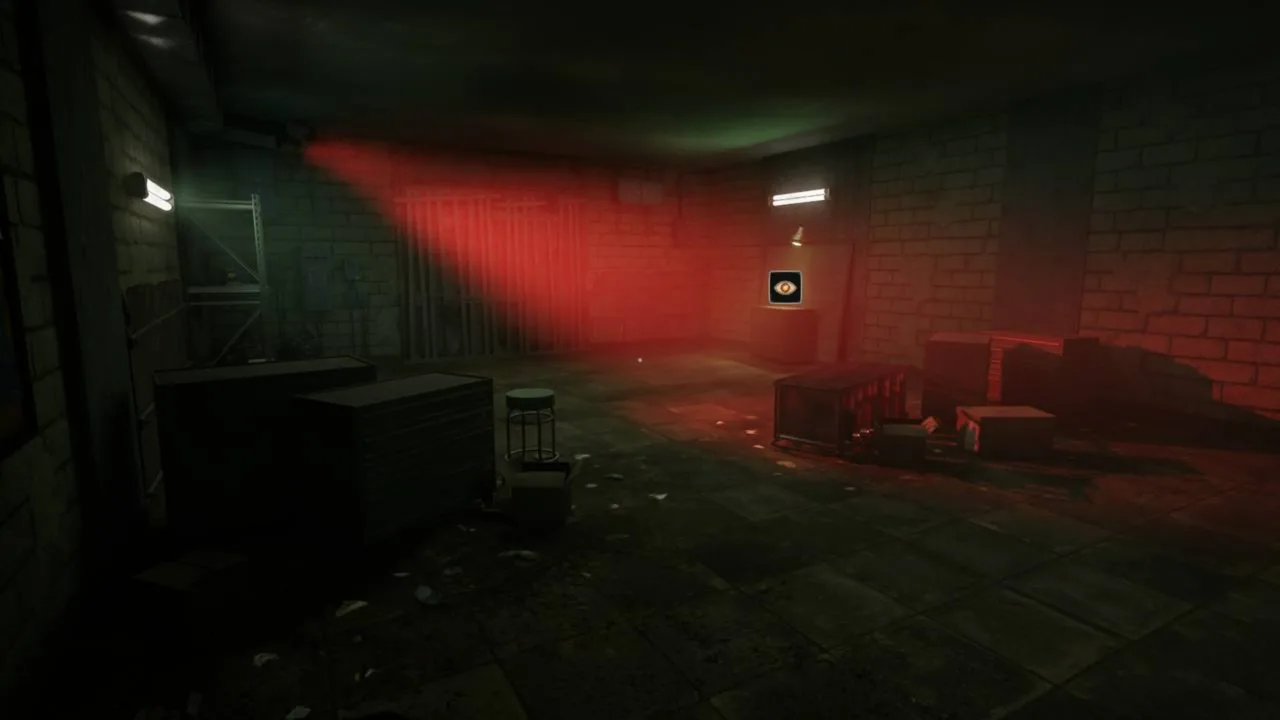
Where to Find the Within Demo Feedback Survey
A tense puzzle can leave you thinking about its solution—or wondering why the clue never clicked. The Within demo feedback survey gives you a way to explain that difference and help the solo developer improve puzzle balance and fix bugs. After playing, use the Within demo feedback survey to describe what worked, what interrupted your session, and the exact moment you got stuck.
The developer shared a survey form in the Steam announcement titled “Within Demo: Now Available.” Open Within’s Steam page, look for that announcement in the game’s news, and follow its survey invitation.
You can also leave a comment under the announcement or start a discussion in the Steam Community hub. For technical problems, the developer has a dedicated “[BUG REPORT] - Report bugs Here” thread.
| What you want to share | Where to send it | What to include |
|---|---|---|
| Overall demo impressions | Survey linked in the demo announcement | Highlights, frustrations, and changes you would appreciate |
| A specific puzzle concern | Survey or Steam discussion | The clue, your interpretation, and where the connection broke down |
| A crash or technical issue | Dedicated bug-report thread | What happened, reproduction steps, and system specifications |
| A brief reaction | Comment under the demo announcement | A concrete detail about atmosphere, story, or gameplay |
Keep your feedback focused on the version you actually played. Within’s full game is now available, while the developer has described the demo as an older build. A demo problem and a full-game problem need separate descriptions.
Know Which Version You’re Giving Feedback On
Within is a first-person thriller built around exploration, puzzles, and a crime that draws you into danger. Its dark environments and story give your feedback several useful angles: whether you understood your objective, whether clues made sense, and whether the atmosphere held your attention.
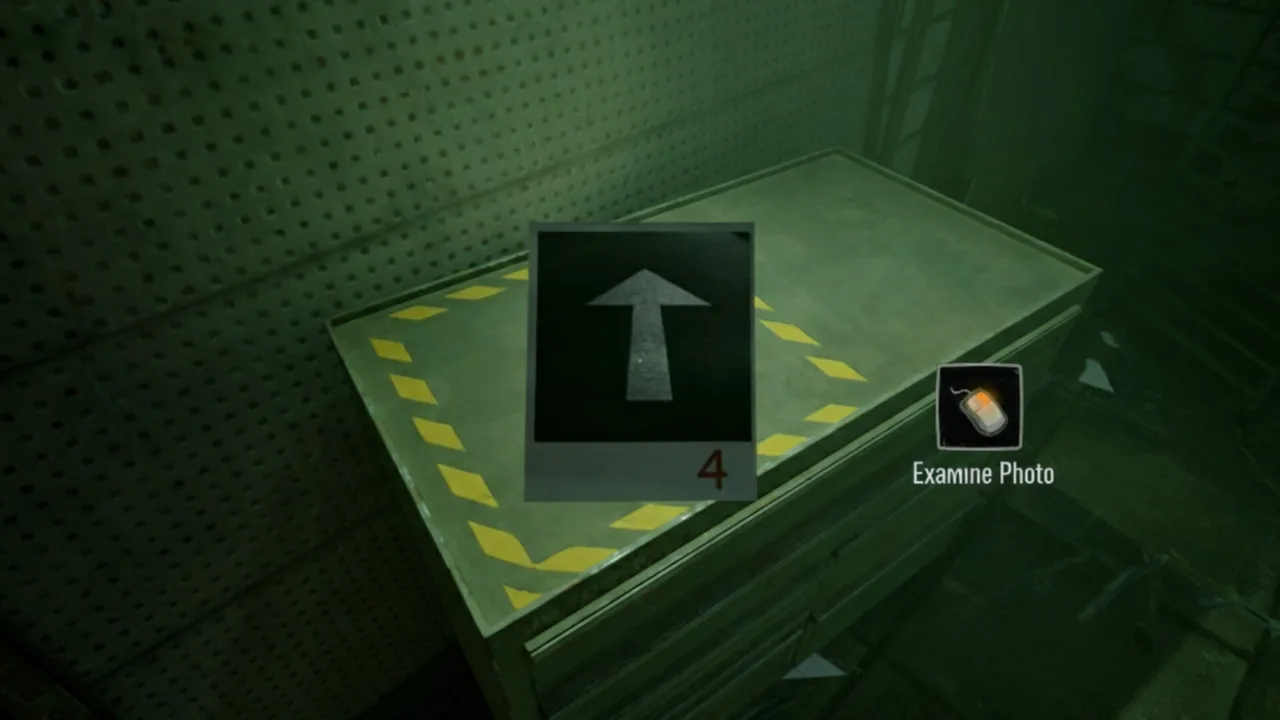 Image: Steam / AleksandrGlock
The free Within Demo on Steam is a Windows release connected to the full game. Its Steam app ID is 4377840; the full game’s ID is 3580070. Include “demo” in your report so the developer can distinguish your experience immediately.
That distinction matters for dialogue accessibility. The developer has added subtitles for every line of dialogue and a volume control setting to the main game following complaints about hard-to-understand speech. Describe the audio experience in your demo session without assuming those full-game changes apply to it.
Before completing the Within demo feedback survey, jot down:
- Whether you played the demo or the full game.
- Your selected language.
- How far you reached.
- Whether you stopped because of confusion, a technical problem, or personal preference.
- Any settings you changed while investigating a problem.
You do not need to finish the demo to explain a useful problem. If the opening sequence froze, that interruption is the relevant experience. If a puzzle stopped your progress, explain what you understood before you stopped.
Avoid folding every frustration into a single score. A game can have an engaging premise and an unclear clue, or strong atmosphere and distracting audio. Separating those reactions gives the developer something specific to address.
What to Include in Your Demo Feedback
The Within demo feedback survey is intended to help the developer adjust balance and resolve bugs. Make each comment answer a practical question: What happened, how did it affect your session, and what change would help?
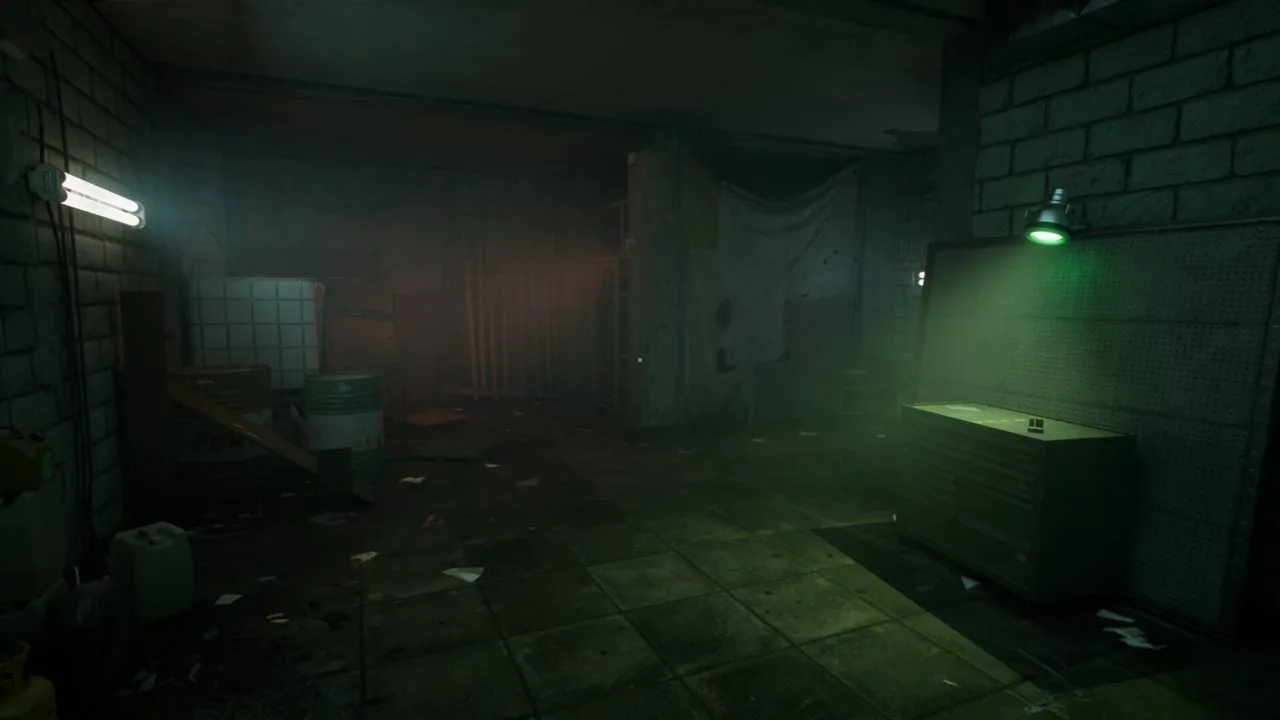 Image: Steam / AleksandrGlock
“The puzzle was bad” expresses frustration, but it leaves the cause open. “I found the clue, but I could not connect its wording to the objects I could interact with” identifies a clearer problem.
Apply the same precision to positive feedback. Instead of only saying you liked the atmosphere, name the element that held your attention. That could be the setting, the sense of danger, or the way exploration supported the mystery—whichever matches your experience.
| Feedback area | Detail to describe | Example prompt for your notes |
|---|---|---|
| Atmosphere | Where tension increased or faded | Which part made you want to keep exploring? |
| Puzzle clarity | How you connected clues to actions | What did you think the clue was asking you to do? |
| Story | Your understanding of events and objectives | What motivated you to continue? |
| Dialogue | Whether you could understand important speech | Did a spoken instruction leave you unsure of your next action? |
| Technical performance | The interruption and its circumstances | What happened immediately before the freeze or crash? |
These are prompts for preparing your feedback, rather than the survey’s wording. Use them to organize what you want to say before opening the form.
Separate Difficulty From Confusion
A challenging puzzle can still communicate its rules clearly. Difficulty comes from working through those rules; confusion can come from not understanding what information matters.
Describe that distinction in your response. Did you understand the goal but struggle to reach it? Did you miss an instruction? Did you understand the instruction but see no connection to the environment?
Keep suggestions tied to the obstacle. Ask for clearer wording when wording caused trouble. Ask for more readable text when you could not read a clue. Explain the specific speech you struggled to hear when dialogue blocked your understanding.
Mention What You Want Preserved
Include something that worked alongside your criticism. Useful positive feedback helps identify what should survive a revision.
For example, explain whether solving a puzzle felt satisfying once its logic clicked. If you enjoyed exploring but disliked an unclear objective, describe both experiences separately. That gives a more accurate picture than calling the whole session enjoyable or frustrating.
Explain Puzzle and Audio Problems Clearly
The clock-and-tombstone puzzle has prompted complaints about unclear logic and difficulty understanding spoken instructions. The developer described an average solving time of 7–10 minutes, while a player described spending 45 minutes before eventually figuring it out.
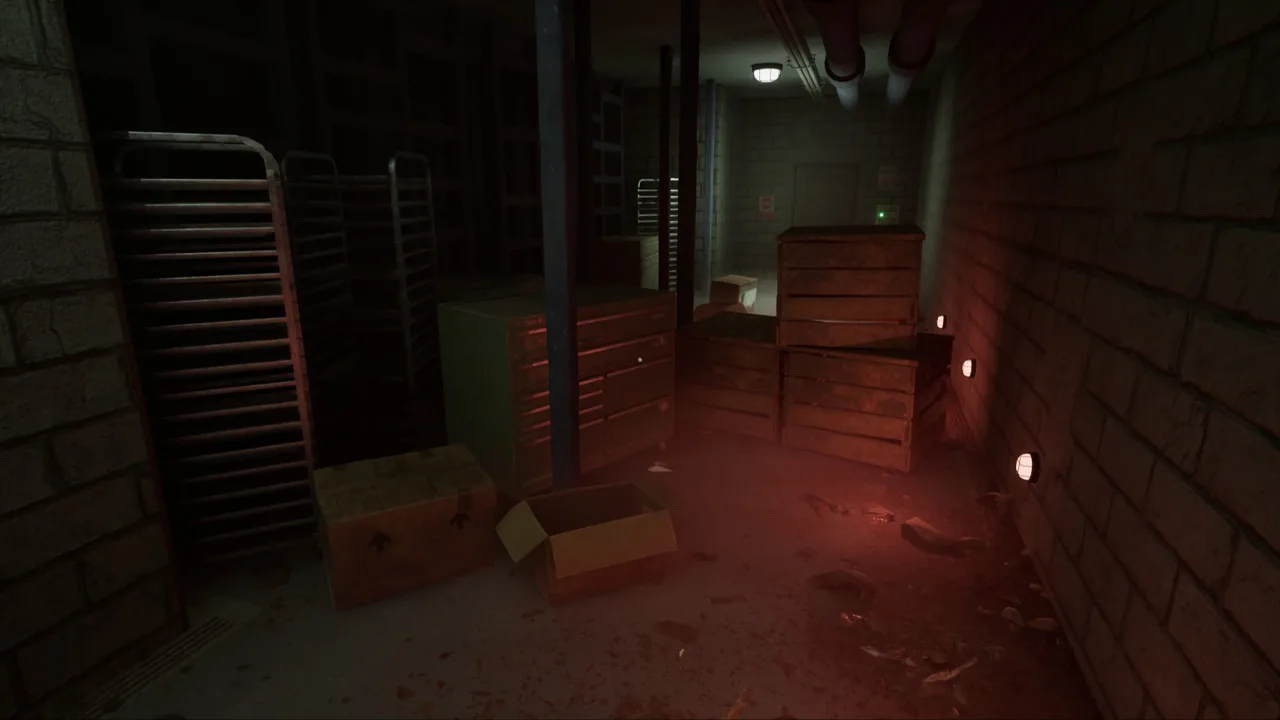 Image: Steam / AleksandrGlock
Those times are context, not a target you need to meet. Record your own experience accurately. If you did not track the time, describe the sequence of attempts instead of guessing.
For the Within demo feedback survey, explain your reasoning as well as the outcome. The developer needs to understand why a clue led you toward an unsuccessful interpretation.
| Part of your puzzle feedback | What to write |
|---|---|
| Location | Name or describe the puzzle you reached |
| Clue understood | Explain the instruction in your own words |
| Action attempted | Describe what you tried because of that instruction |
| Result | Explain what changed, or what appeared unchanged |
| Obstacle | Identify the wording, audio, or interaction that confused you |
| Suggested improvement | Request a change connected to that obstacle |
A sample response could read:
“At the clock-and-tombstone puzzle, I could not understand enough of the walkie-talkie instruction to decide what to try. I kept interacting with the puzzle without a clear goal. A readable version of that instruction would help me work through the solution.”
Use that structure only if it matches your session. Substitute your actual actions and observations.
Describe Audio Problems Beyond “Too Quiet”
Players have struggled to understand the walkie-talkie dialogue in the demo, including speech needed for the clock puzzle. When describing an audio issue, distinguish low volume from unclear speech.
Name your selected language and explain whether the problem affected every line or one particular instruction. If you adjusted settings, describe what you changed and whether it helped.
Keep the main-game improvements separate: subtitles and a volume control setting have been added there. Your demo feedback should identify the experience you had in the demo.
For other puzzle concerns, describe the visible result of your actions. For example, a dock-area complaint described lowered levers and a red light without an obvious next step. Explain whether you were unsure of the objective, expected a visible response, or could not identify what to interact with next.
Report Freezes and Bugs With Useful Details
Technical feedback deserves more detail than an overall impression. The developer’s bug-report format asks for an issue description and steps to reproduce it, with system specifications and screenshots or video as additional information.
The Within demo feedback survey can summarize a technical interruption. Put the fuller description in the dedicated bug-report thread, especially when the issue prevents play.
Players have described the demo freezing during the opening cutscene after a button press. In those accounts, the application remained running without advancing. That is a different symptom from a crash that closes the game.
Use precise language about what you saw.
| Report field | Information to include |
|---|---|
| Version | State that you were playing Within Demo |
| Issue description | Freeze, crash, missing response, or another specific symptom |
| Steps before the issue | Describe your actions in order |
| Expected result | Explain what you expected to happen next |
| Actual result | Describe what the game did instead |
| System specifications | Operating system, graphics card, CPU, and RAM |
| Supporting capture | Screenshot or short video, if available |
| Troubleshooting attempted | Changes you already tried and their results |
If you saw an error message, include its exact wording. If the application remained open, say so. If you tried different settings, list the changes instead of writing “tried everything.”
Do not label a confusing puzzle as a software bug solely because you are stuck. Describe the behavior first. A control that produces no visible response and a clue you do not understand are different problems, even when both stop your progress.
Before submitting the Within demo feedback survey, remove repeated complaints and keep the details that explain your experience. Lead with the issue that affected you most directly, then add a clear example.
A concise closing response can cover three points: what held your attention, what interrupted play, and what you would like improved. Honest detail gives the developer a more useful next step than either blanket praise or an angry paragraph.
FAQ
Where is the Within demo feedback survey?
The developer linked it in the Steam announcement titled “Within Demo: Now Available.” Open Within’s Steam page, find that announcement in the game’s news, and follow the survey invitation.
Can I give feedback without finishing the demo?
Yes. Describe how far you reached and why you stopped. An opening freeze, confusing instruction, or puzzle that blocked progress can provide useful feedback even without a completed playthrough.
Should I report demo crashes through the survey?
Use the survey to summarize the interruption, then give the detailed report in the developer’s dedicated bug-report thread. Include what happened, your preceding actions, system specifications, and a screenshot or video if available.
Does the full game have subtitles?
Yes. The developer added subtitles for every line of dialogue and a volume control setting to the main game. Identify your version when discussing audio so your feedback clearly applies to the demo or the full release.
Continue with
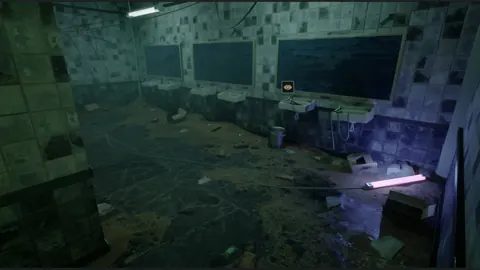 Within Demo Freezes After Button Clicks: What to TryWithin demo freezes after button clicks? Learn how to identify the opening cutscene stall, check your PC setup, and report a demo bug with useful details.
More in Demo
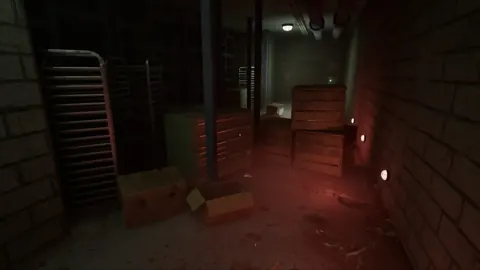
Within Demo Development Build: What Players Should Know
Within demo development build guide: explore the free Steam demo, understand older-build issues, compare PC requirements, and prepare for the full game.
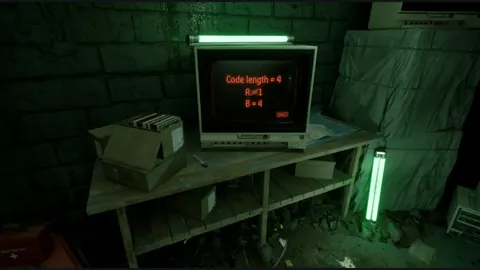
Within Demo: Download, PC Specs, and Gameplay Guide
Explore the Within demo with download links, Windows PC requirements, puzzle tips, and help for opening freezes. Know what to expect before you begin.
Join the community
Official channels for news, updates and player help: