
Within Demo Freezes After Button Clicks: What to Try
Within demo freezes after button clicks? Learn how to identify the opening cutscene stall, check your PC setup, and report a demo bug with useful details.
Jump to
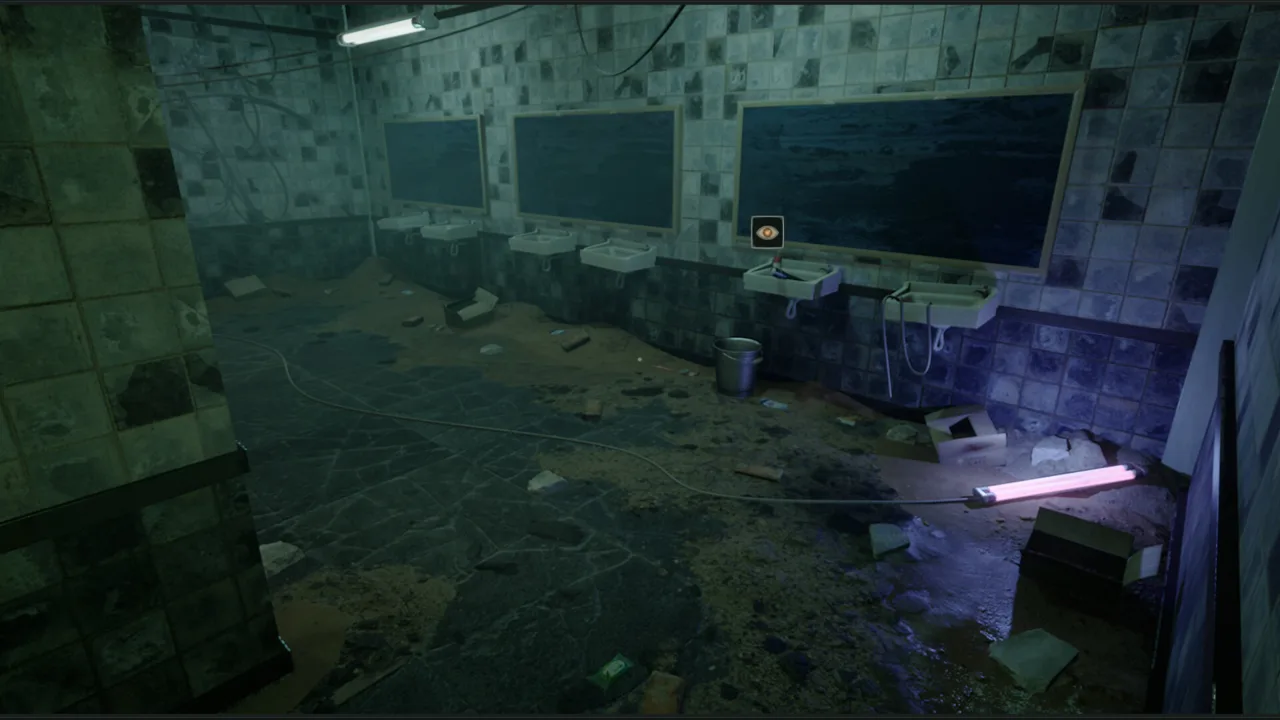
Recognize the Opening Cutscene Stall
A button press should move the story forward, not leave you staring at a motionless scene. If Within demo freezes after button clicks, the opening can block your progress while the game stays running. When Within demo freezes after button clicks without closing or showing “Not responding,” focus on the stalled sequence before treating it as a crash.
The specific problem occurs in the beginning cutscene, after the character pushes a button. The demo remains active in memory, but the scene stops advancing. Other players have encountered the same stopping point, so this is more specific than a general complaint about low frame rates.
That distinction matters when deciding what to try. A frozen story sequence, an application crash, and a puzzle that refuses an interaction can look similar at a glance. Describe what actually stops: the picture, the controls, the audio, or the next scripted event.
| What you encounter | How to describe it | What to record |
|---|---|---|
| Opening stops after the character presses a button | Opening cutscene stall | The exact action immediately before the stop |
| Game stays open without a “Not responding” message | Application remains active | Whether the scene ever resumes |
| Game exits with an error | Crash | The error text and when it appears |
| Scene continues, but a puzzle does not advance | Interaction or progression problem | The puzzle state and actions already taken |
Keep the opening freeze separate from later puzzle confusion. Within includes puzzles, exploration, and story sequences, so a lack of progress does not automatically mean the whole application has frozen. Check whether you can still move or interact before describing a later obstacle as the same bug.
The demo is a very old build. Use that version distinction throughout your troubleshooting: you are dealing with Within Demo, not automatically diagnosing the currently available full game.
Try Focused Checks Before Changing Everything
If Within demo freezes after button clicks at the same moment on each attempt, test one change at a time. Changing graphics settings, background applications, and input devices together makes it harder to tell which change affected the result.
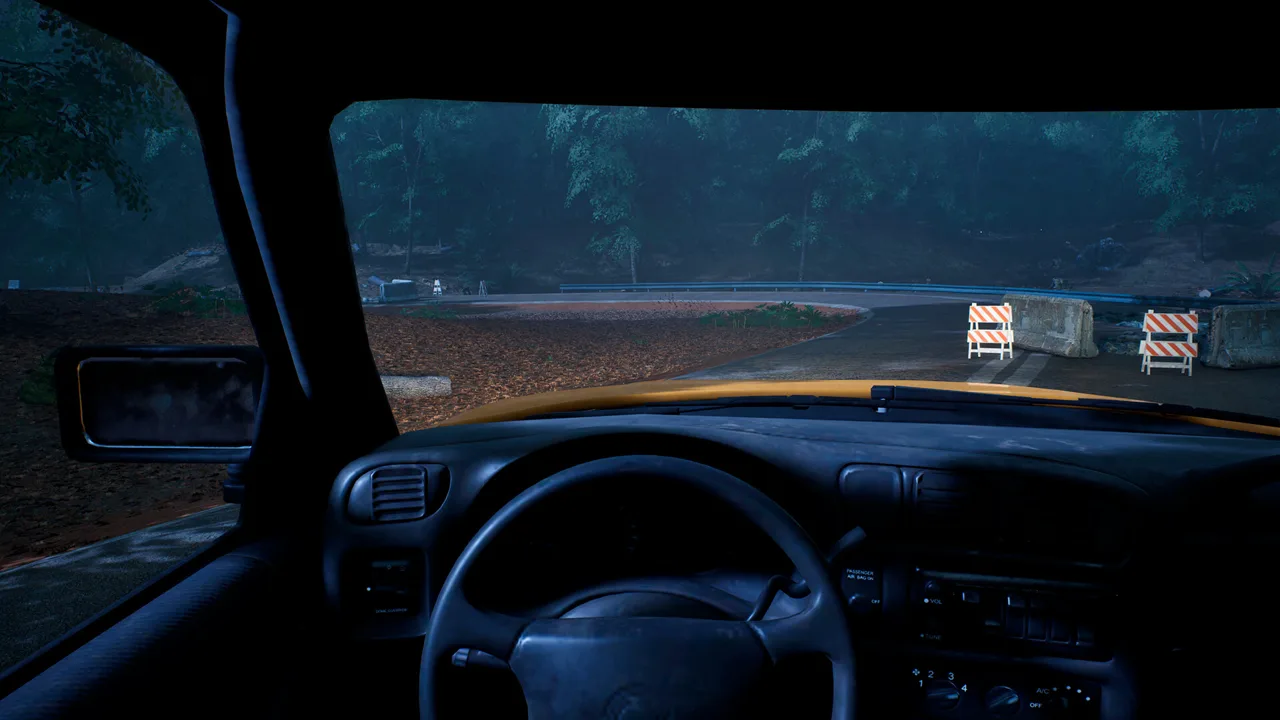 Image: Steam / AleksandrGlock
One affected setup included a Ryzen 9 processor, 32 GB of RAM, a 5060ti graphics card, and an SSD. The player had already tried different settings combinations. That makes endlessly cycling graphics presets a poor starting point for this particular symptom.
Begin with a fresh launch and watch the opening again. Write down whether it stops at precisely the same button press. If it does, preserve that simple reproduction sequence; it is more useful than a long list of unrelated settings changes.
| Check | How to approach it | What to compare afterward |
|---|---|---|
| Fresh launch | Close the stalled demo and launch it again | Whether the same sequence stops |
| Demo updates | Check whether Steam has a pending update for Within Demo | Whether the opening behavior changes |
| Installed files | Use Steam’s file-verification option for the demo | Whether the cutscene advances afterward |
| Peripheral software | Temporarily close optional mouse, keyboard, or RGB utilities | Whether clicking still triggers a pause |
| Overlays | Test with optional overlays and monitoring tools closed | Whether the stopping point changes |
These are troubleshooting checks, not a promised repair for the opening sequence. Record the outcome of each check, including attempts that leave the behavior unchanged. When Within demo freezes after button clicks, keep those results together so you can explain exactly what you changed.
Input software deserves attention when the symptom is broader than one cutscene. In Conan Exiles on PC Game Pass, freezing after keyboard or mouse input was resolved by closing Razer peripheral applications. That gives you a practical reason to test optional peripheral software when every input causes a pause. It does not make that separate game's solution a Within-specific fix.
Likewise, distinguish a Steam-wide problem from a single-demo problem. If other games freeze when you click, record that pattern. If only Within Demo stops after the character’s button press, keep your testing centered on the demo.
Avoid buying another edition simply to compare launchers. You already have a free demo to test, and a repeatable stopping point gives you useful information without another purchase.
Before reinstalling or changing save data, preserve anything you want to keep. Do not guess at save-file locations or delete unfamiliar folders. Start with reversible checks that leave your progress and settings intact.
Check the Demo’s Windows Requirements
When Within demo freezes after button clicks, compare your PC against the demo’s requirements rather than mixing them with the full game’s specifications. Within Demo supports Windows; its platform details do not list macOS or Linux support.
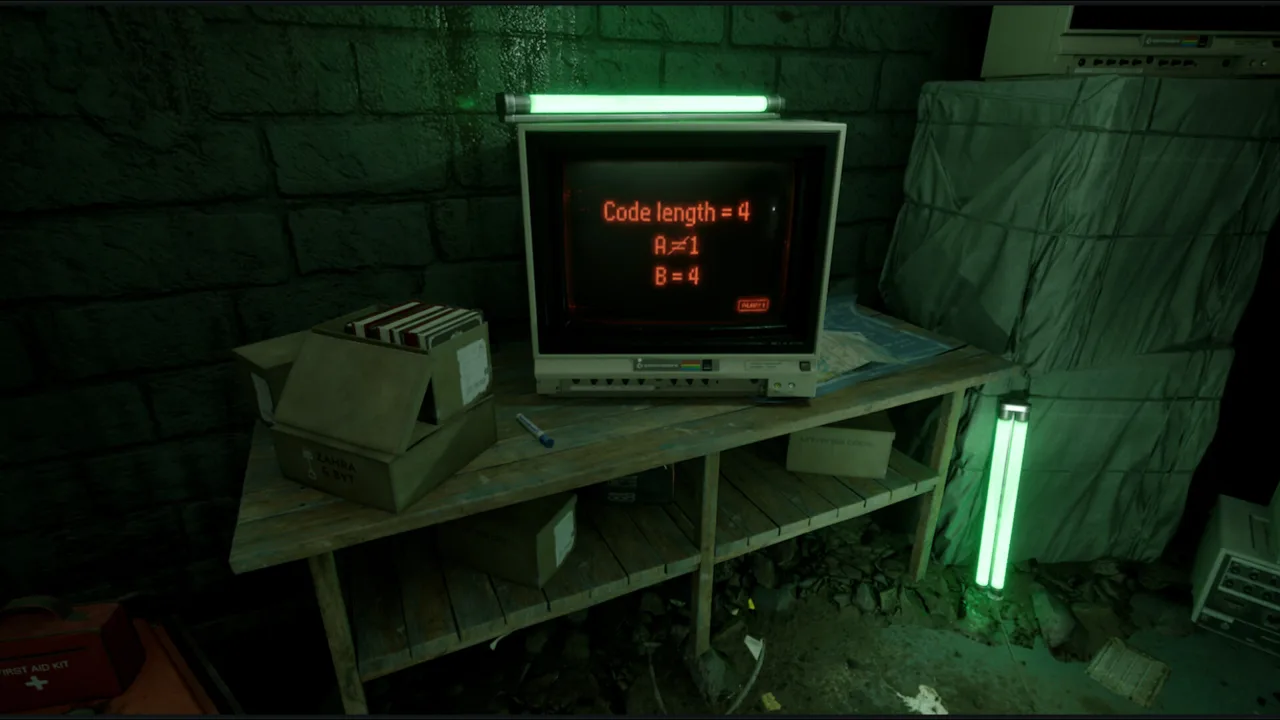 Image: Steam / AleksandrGlock
The demo’s minimum requirements include 12 GB of RAM and 5 GB of available storage. Those are different from the full game’s minimum memory and storage figures, so use the correct version when describing your setup.
| Component | Within Demo minimum requirement |
|---|---|
| Operating system | Windows 10 or Windows 11, 64-bit |
| Processor | Intel Core i3 |
| Memory | 12 GB RAM |
| Graphics | NVIDIA GeForce GTX 1080 |
| DirectX | Version 11 |
| Storage | 5 GB available space |
The processor requirement names a family rather than a specific model. Include your complete CPU model in a bug report instead of writing only “i3,” “i5,” or “Ryzen 9.” The same applies to your graphics card.
Compare installed memory with the demo’s minimum, and check that the drive has the required available space. Close unnecessary applications before testing so you can describe the conditions clearly.
Keep hardware requirements in perspective. The opening stall has occurred on a machine with 32 GB of RAM and an SSD, so a higher memory total alone is not a useful explanation for why that cutscene stops. Meeting requirements and reproducing a particular sequence are separate pieces of information.
If you decide to check graphics drivers, record the installed version before making changes. Update through your graphics hardware vendor’s normal tools, then repeat the same opening sequence. Avoid combining that test with several other changes.
You can access the free Within Demo on Steam. Use that entry when checking the demo installation, especially if you also have the full game in your library.
Understand the Console Workaround’s Limits
A level-jump workaround has been used when Within demo freezes after button clicks. In the old demo, a player opened the developer command line with the Tilde key and entered open ChairLvl. That command loaded a level beyond the stalled opening.
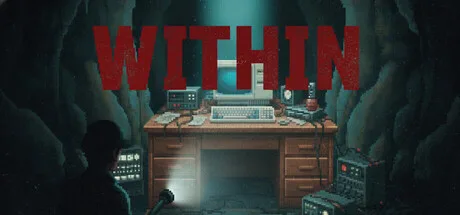 Image: Steam / AleksandrGlock
The important detail is what happened next: reaching another level did not produce a straightforward continuation. After opening doors and reaching a mirror light reflection puzzle, the player still struggled to make sense of the sequence.
Use the command only as an optional experiment in the old demo. It skips the opening route rather than repairing the stalled cutscene, and the experience afterward can be confusing.
If you try it:
- Record that you used
open ChairLvl. - Separate problems encountered after the jump from the original opening freeze.
- Do not use the jumped session to describe normal progression through the demo.
- Preserve a clear account of the original stopping point.
That separation helps prevent two different issues from getting tangled together. “The opening stopped after the button press” and “I became confused after jumping directly into another level” describe different situations.
Within’s later puzzle difficulties also deserve their own descriptions. Players have struggled with the clock and tombstone puzzle, unclear walkie-talkie dialogue, and a dock-area switch sequence. Those obstacles should be described through their specific interactions rather than grouped under the opening freeze.
The full game includes subtitles for every dialogue line and a volume control setting. Keep those full-game features separate from the old demo when discussing unclear instructions.
The full game is now available through the Within Steam page. If you move to that version, record its behavior separately instead of carrying the demo diagnosis into a different build.
Report the Freeze With a Useful Reproduction
If Within demo freezes after button clicks despite focused checks, send a concise report through the developer’s Steam bug-report discussion. Identify the demo explicitly so the issue is assigned to the right version.
The developer requests an issue description and detailed reproduction steps, with system specifications and a screenshot or video when available. Build your report around those fields.
| Report field | Details to include |
|---|---|
| Version | Within Demo, with its version or build information if visible |
| Issue description | Opening cutscene stops after the character presses the button |
| Reproduction steps | The actions taken from launch to the stopping point |
| Application behavior | Whether it stays open, exits, or displays an error |
| System specifications | Windows version, full CPU model, GPU, and RAM |
| Troubleshooting completed | Each check performed and its result |
| Visual evidence | A screenshot or short recording of the stopping point |
Write the reproduction steps as actions someone else can follow. Begin with launching Within Demo, then describe any choices you made before the opening. Finish with the button press and the behavior afterward.
Avoid vague descriptions such as “everything is broken” or “nothing works.” Explain whether the character stops moving, the picture stays fixed, or the demo remains open without advancing. Include what happens to the audio rather than assuming it matches another player’s experience.
Record whether the stall happens on every attempt or only sometimes. If a settings change alters the behavior, name the setting and explain the difference. If it changes nothing, say that plainly.
A screenshot identifies the scene. A short recording can show the transition from normal playback to the stopping point. Keep the clip focused on the problem rather than recording a long troubleshooting session.
Also mention any console use. A level jump changes how you reached the next area, and that detail matters when describing later doors or puzzles.
Once you have a repeatable sequence and a complete report, stop cycling through the same unsuccessful changes. Keep your troubleshooting notes and check the developer’s update announcements for changes relevant to the demo.
FAQ
Why does Within demo freezes after button clicks happen during the opening?
The old demo can stop immediately after the character presses a button in the beginning cutscene while remaining active in memory. Treat that specific sequence as the problem to reproduce, and record its behavior before changing your setup.
Does the freeze mean my PC is too weak?
Compare your PC with the demo’s requirements before drawing a conclusion about hardware. The opening stall has occurred on a Ryzen 9 system with 32 GB of RAM, a 5060ti, and an SSD. Check the demo’s requirements, then document the exact stopping point.
Can open ChairLvl get past the frozen opening?
In the old demo, entering open ChairLvl through the developer command line loaded another level. The session afterward still involved confusing progression around doors and a mirror light reflection puzzle. Use it as a level-jump experiment, not a cutscene repair.
Does the full game have subtitles?
Yes. The full game includes subtitles for every dialogue line and a volume control setting. Those features address understanding dialogue; they serve a different purpose from troubleshooting the old demo’s opening stall.
Continue with
 Within Demo: Download, PC Specs, and Gameplay GuideExplore the Within demo with download links, Windows PC requirements, puzzle tips, and help for opening freezes. Know what to expect before you begin.
More in Demo
Within Demo Development Build: What Players Should Know
Within demo development build guide: explore the free Steam demo, understand older-build issues, compare PC requirements, and prepare for the full game.
Within Demo Feedback Survey: How to Share Your Thoughts
Use the Within demo feedback survey to share puzzle feedback, report bugs, and note audio issues. Learn what to include after playing the free Steam demo.
Join the community
Official channels for news, updates and player help: