
Within Level Selection: Demo Console and Puzzle Help
Within level selection help for the demo, including the ChairLvl console command, puzzle roadblocks, and update fixes. Get back to exploring with tips.
Jump to
How Does Within Level Selection Work?
Stuck watching the opening button press with nowhere to go? Within level selection offers a way past that specific freeze in an earlier Windows demo build through its development console. This Within level selection guide explains the demo command, separates it from full-game troubleshooting, and helps you recognize puzzle progress before you abandon a working run.
The useful command is open ChairLvl. In the earlier demo, opening the console with the tilde or circumflex key and entering that command loaded a playable level after the introduction stopped advancing.
Keep that version distinction in mind. This is a workaround for the earlier demo’s development build. For the released game, start with the updates that address gameplay logic, physics, localization, and a potential freeze during the final cutscene.
| Version | Relevant detail | What to do |
|---|---|---|
| Earlier Windows demo build | The console accepted open ChairLvl | Use the command when troubleshooting that demo’s opening freeze |
| Full Windows game | Updates address bugs, logic issues, and performance | Install updates before investigating a stuck sequence |
| Full game’s final cutscene | A hotfix addresses a potential freeze | Update before retrying the affected sequence |
Using the demo console command
For the earlier demo build affected by the opening freeze:
- Press the tilde or circumflex key to open the development console.
- Enter
open ChairLvl. - Submit the command to load the level.
Type the map name exactly as shown. ChairLvl is the specific destination associated with this workaround; it is not a numbered chapter choice.
Once you reach the playable area, return your attention to the environment. The demo includes doors, interactive mechanisms, and a mirror light-reflection puzzle. Loading a level gets you into that area, but you still need to work through its challenges.
Use Within level selection for the demo problem it addresses. For a puzzle that still responds to your inputs, inspect the clues and current mechanism state before trying to leave the area.
Separate the Demo From the Full Game
Before following Within level selection instructions, check which version you launched. The full game and demo have separate Steam entries:
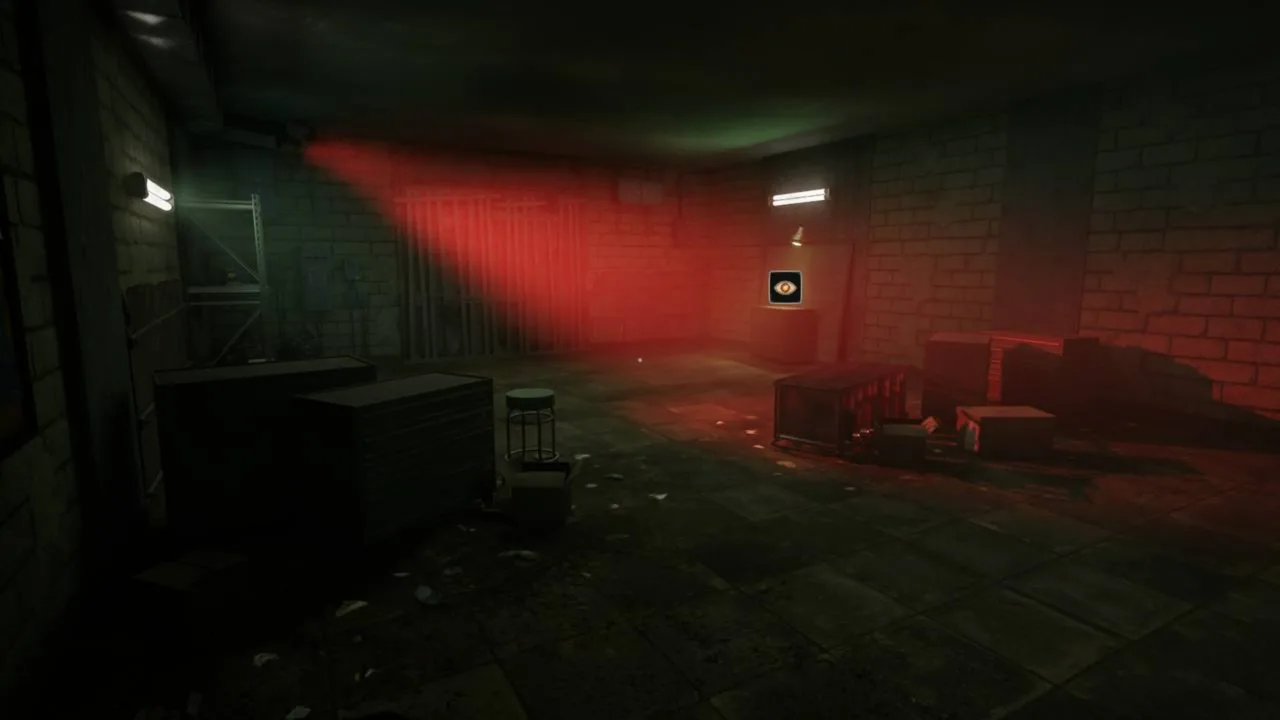 Image: Steam / AleksandrGlock
- Within: Steam app ID
3580070, released October 11, 2026. - Within Demo: Steam app ID
4377840, released February 12, 2026.
That difference matters when troubleshooting. The earlier demo’s opening-button freeze and the full game’s final-cutscene freeze happen at different points and have different remedies.
You can open Within’s full-game Steam page or download Within Demo on Steam. Match the instructions you follow to the version you are playing.
The full game follows your search for a missing wife into a trap built by a calculating captor. Its challenges combine ciphers, hidden sequences, environmental mechanisms, and exploration. Vintage gramophones carry the antagonist’s instructions and clues, making careful listening part of solving the puzzles.
Approach each area with that combination in mind. Examine the mechanism, listen to the accompanying dialogue, and connect the two before entering a sequence. If an instruction passes too quickly, write down the words you catch and compare them with the objects around you.
Keep demo troubleshooting separate from full-game puzzle solving. An old console workaround will not explain a new lever combination, and an update for the ending addresses a different interruption from the demo’s frozen introduction.
Check the Puzzle State Before Trying to Skip Ahead
A difficult puzzle can send you searching for Within level selection even while the game is responding correctly. The clock-and-tombstone challenge and ABC levers deserve particular attention because their instructions can be easy to misread.
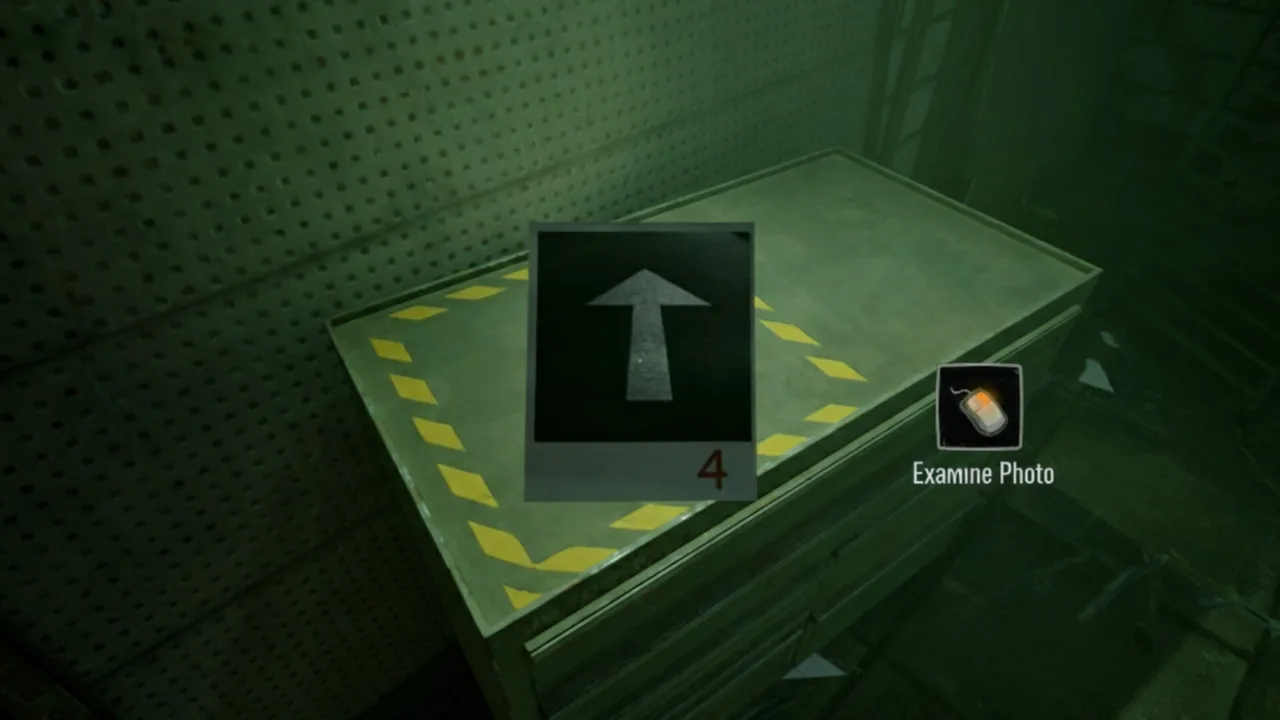 Image: Steam / AleksandrGlock
| Puzzle or area | Relevant behavior | What to focus on |
|---|---|---|
| Clock and tombstones | The challenge connects clock imagery with tombstones | Compare the environmental clues before committing to a theory |
| ABC levers | The code length can increase to five | Find the combination for the new phase |
| Mirror light-reflection puzzle | This puzzle appears in the earlier demo’s playable area | Inspect the reflection setup and its interactive elements |
Clock and tombstones
Slow down before turning every visible number into an equation. The clock puzzle has prompted attempts to add and subtract tombstone values from the time on a large floor clock, but that arithmetic approach can lead you away from the answer.
Write down the visible information without immediately interpreting it. Keep numbers, positions, and any spoken instructions separate. Then test whether your proposed solution accounts for the whole scene.
Avoid changing several things at once. Make a deliberate adjustment, watch for a response, and keep track of what you changed. This makes it easier to distinguish a useful idea from random experimentation.
The challenge drew a developer estimate of roughly 7–10 minutes to solve in the demo. Use that as context, not a deadline. If you are stuck longer, take another look at the wording and arrangement instead of assuming that more complicated arithmetic will help.
ABC levers and the five-input phase
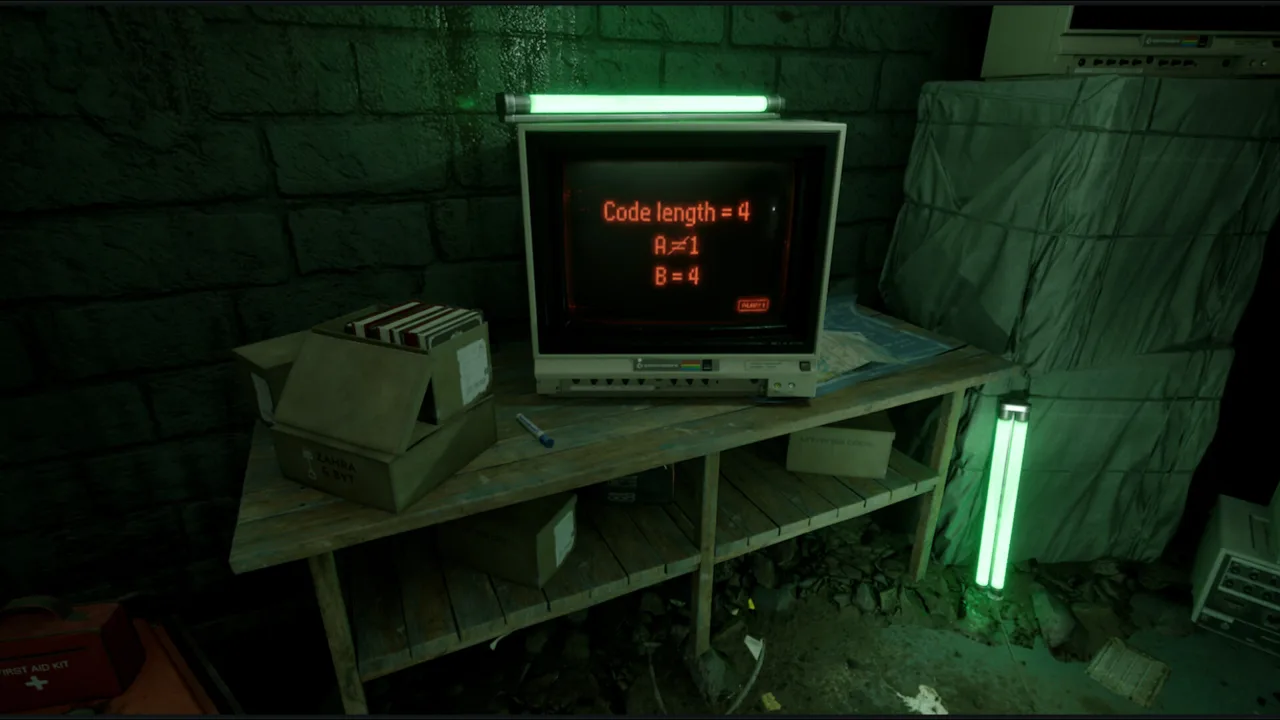
The ABC lever puzzle has a concrete progression cue: when the code length increases to five, you have entered a new phase.
At that point, look for the combination belonging to the new phase. Continuing to apply the earlier sequence misses the significance of the changed code length.
Pay attention to the TV as well as the levers. If the display changes, inspect it again before entering another combination. Capture brief hints in a screenshot or write them down so you can compare the instructions without relying on memory.
A responding mechanism, a changed display, and a longer code give you something specific to investigate. Follow those changes before treating the puzzle as a frozen sequence.
Keep your notes useful
For each attempt, record the clue you used and the input you tried. Cross out theories that do not fit the environment. Keep incomplete dialogue fragments separate from exact instructions so a half-heard phrase does not become the foundation of every later attempt.
Fix Freezes and Physics Problems Before Reloading Levels
For the released game, put updates ahead of Within level selection experiments. The optimization update changes several systems that affect how movement and interactive objects behave.
 Image: Steam / AleksandrGlock
| Problem or setting | Update change | Action |
|---|---|---|
| Car movement and loose objects | Physics no longer depends on frame rate | Update before retrying unusual vehicle or object behavior |
| Crawling and minecarts | Behavior is consistent across frame rates | Retry the affected section after updating |
| Final-cutscene freeze | A hotfix addresses a potential freeze | Install the hotfix |
| Low graphics preset | Improved performance and corrected excessive brightness | Select Low in Options if you need more performance |
| Resolution buttons | 720p, 1080p, 2K, and 4K buttons work correctly | Use them to change rendering resolution |
If you are stuck in the car
The car should become drivable after the barrier opens and the “I can go now” prompt appears. Use those cues to check the situation before repeatedly clicking around the vehicle.
Enter from beside the car. Climbing onto it before entering can produce strange behavior. If you are already troubleshooting an unresponsive car, include your entry position when describing the problem.
The physics update also matters here: car speed now behaves correctly across graphics settings. Install it before trying to diagnose a movement issue by changing presets.
Apply the revised graphics presets
High, Medium, and Low were reworked in the optimization update, with High becoming the default for new players. Existing players keep their previous graphics settings.
Open Options and select a preset to try the revised settings. Choose Low if you need the performance improvement intended for weaker PCs. Its earlier overexposed image has also been corrected, making it a more practical option when balancing visibility and performance.
The game uses borderless fullscreen at your desktop resolution. The resolution buttons change the rendering resolution, so the desktop-sized display remains part of the expected behavior.
Match the fix to the interruption
Describe where the sequence stops before choosing a remedy:
- Opening button press in the earlier demo: use the demo console workaround.
- Final cutscene in the released game: install the hotfix.
- Unusual car, crawling, or minecart behavior: install the physics update.
- Responsive ABC levers with a five-input code: investigate the new puzzle phase.
That distinction keeps troubleshooting focused on the problem you actually have.
Make Your Next Attempt Easier to Diagnose
Before another Within level selection attempt, take a screenshot of the current scene and note the last meaningful interaction. Capture the puzzle display, lever positions, barrier state, or cutscene moment that explains why you stopped.
Then separate an input problem from a clue problem. If a lever moves and the TV changes, record both changes. If the scene stops immediately after a button press, describe that exact transition. Specific details make your next attempt easier to follow and give the developer a clearer starting point.
For a bug report, include:
- Issue description: What stopped working?
- Steps to reproduce: What did you do immediately beforehand?
- System specifications: Windows version, graphics card, CPU, and RAM.
- Screenshot or short recording: Show the affected state when possible.
- Game version: Identify whether you are playing Within or Within Demo.
Keep puzzle notes equally concrete. “The code became five inputs long” is more useful than “the levers stopped making sense.” “I entered while standing on the car” identifies a relevant interaction that “the car broke” leaves out.
Use the demo command for its specific opening problem, keep the full game updated, and let visible puzzle changes guide your next move.
FAQ
What is the Within level selection console command?
In an earlier Windows demo build, open ChairLvl loaded a playable level through the development console. Press the tilde or circumflex key to open that console, then enter the command exactly.
What should I do if the demo freezes after the opening button press?
For the earlier demo build with that problem, open the development console and enter open ChairLvl. Keep this workaround tied to the demo; the released game’s final-cutscene freeze has a separate hotfix.
Why did the ABC lever puzzle change to five inputs?
The longer code indicates a new puzzle phase. Find the combination for that phase and inspect the changed TV display instead of continuing to reuse the earlier sequence.
What should I do if Within freezes during the final cutscene?
Install the game’s updates before retrying. A hotfix specifically addresses a potential final-cutscene freeze. If the problem persists, document the stopping point, preceding actions, system specifications, and a screenshot or recording for a bug report.
Continue with
 Within Achievements: Steam Unlocks and Puzzle GuideTrack Within achievements with a clear Steam checklist, puzzle tips, unlock requirements, and troubleshooting advice. Plan your run and tackle each trial.
More in Guide
Within Patch Notes: V-Sync, Performance, and Fixes
Within patch notes cover V-Sync, graphics presets, resolution fixes, and steadier physics. Get the October update rundown and adjust your settings on PC.
Within Beginner Guide: Puzzle Tips and Getting Started
Use this Within beginner guide to get started, read puzzle clues, handle camera sections, and avoid common demo issues before exploring the full PC game.
Within Difficulty: Puzzle Tips to Keep You Moving Forward
Understand Within difficulty, tackle tricky puzzles, improve dialogue clarity, and spot technical problems. Get practical tips before your playthrough.
Within FAQ: Release, Demo, Puzzles, and PC Requirements
Within FAQ covers the Steam release, free demo, PC requirements, subtitles, puzzle tips, and bug reporting. Get set to explore a dark first-person world.
Join the community
Official channels for news, updates and player help: